
Official comment

You'll need to use some HTML to get your button image into the code. Here's how to do that:
Upload your button image to the ONTRAPORT File Manager found in Administration >> Data Tab >> File Manager. The image should include any text you want on the button.
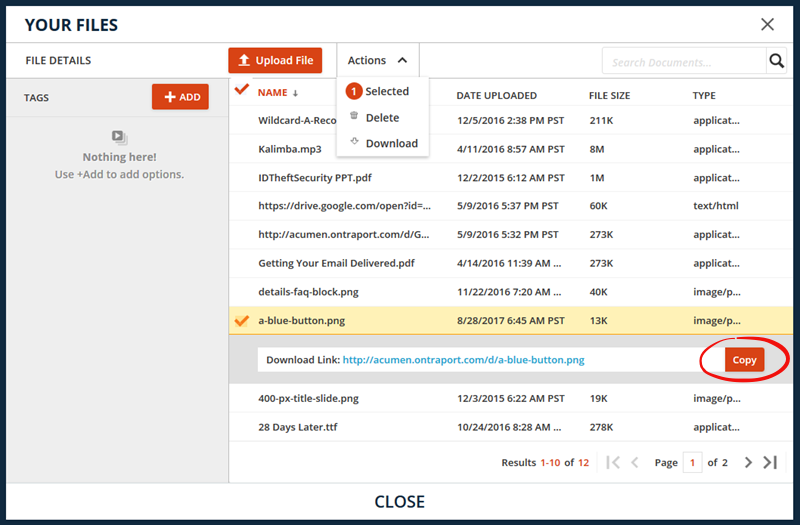
After it uploads, locate it and click on the file name (don't just select the checkbox that appears when you hover over it ... you must click on the filename itself). The Download Link will be shown. Click the Copy button.
Locate the link text in your code ... it says "Register Now!" in your example above. Without disturbing any of the "greater than" > or "less than" < symbols on either side of that, replace that text with the following code you will type in:
- Type
<img src="
- Paste the image URL you copied from the File Manager (CTRL-V on PC or COMMAND-V on Mac)
- Type
" alt="Register Now!" />
- Here's how the complete replacement for the "Register Now!" would look using the image in my that is depicted in the screenshot above:
<img src="http://acumen.ontraport.com/d/a-blue-button.png" alt="Register Now!" />

Using your code from above, the entire code would look like:
<a style=' font-size: 1.5em;text-transform: uppercase;text-decoration: none;font-family: Arial, Helvetica, sans-serif;padding: .3em .6em;letter-spacing: .05em;color: #333;' href='javascript://' data-opf-trigger='p2c154083f1'><img src="http://acumen.ontraport.com/d/a-blue-button.png" alt="Register Now!" /></a><script type='text/javascript' async='true' src='https://app.ontraport.com/js/ontraport/opt_assets/drivers/opf.js' data-opf-uid='p2c154083f1' data-opf-params='borderColor=#fff&borderSize=5px&formHeight=688&formWidth=40%&popPosition=mc&instance=1842691095'></script>
You do have to create the button with the "click here" text you want to use. In the code you add, the text you add in the alt=" statement will display if the contact has images disabled, or if they are vision impaired and are using a screen reader and hover over the button.

