Official comment

Click on Administration > User Field Editor and add a field named "Signature". Make it a long text field (very important that it is a LONG Text field and not a regular text field).
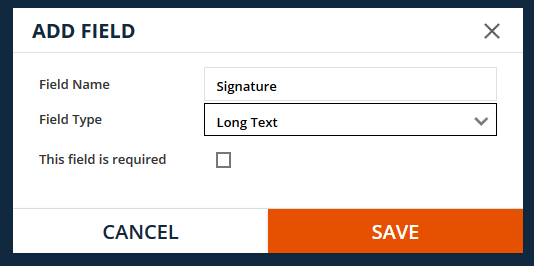
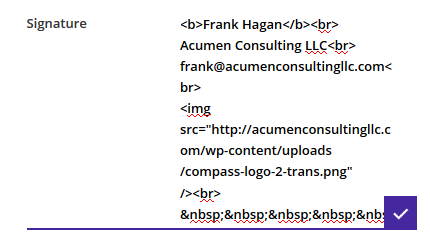
After saving the new field, remember to click Save at the upper right. You should return to the Administration screen. Click on User Management and select the User in your account that you send emails from. You can edit the Signature field with HTML, including <img src="xxxx" /> links to pull in an image from the File Manager. Use HTML <br> to provide line breaks in the text, and use <SHIFT> + <ENTER> to add line breaks in the editing box (pressing <ENTER> alone will save and exit the field.)
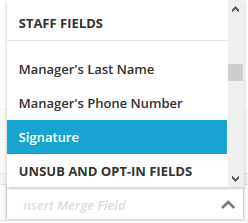
In the merge fields drop down, under Staff Fields, you will find the Signature merge field that you can insert into the email at the bottom.