Official comment

ONTRAPORT Pages, v3, will soon include all Google Fonts. They can be used for any element on the page, including field labels.
Comment actions

Does anyone know how to change the Field Label fonts in a smart form to Google Fonts? I saw the video on how to use Google Fonts in a smart form via Add Content button, but I'm looking to use Google fonts for Field Labels.
Thanks!
ONTRAPORT Pages, v3, will soon include all Google Fonts. They can be used for any element on the page, including field labels.
Please sign in to leave a comment.
You can in a Smart Form in an ONTRApage, and this works for ONTRAforms as well:
Google Fonts can be used to replace all of the fonts on a page with the exception of the Body Text and Large Body Text fonts. Because this is an advanced process, we recommend you design your page in the ONTRApages Editor first, make a copy of it, and publish the copy on one of our free domains. Then take the following steps to replace an ONTRApages font with your cool new Google font. After testing you can apply this same process to your live page.
1). With the ONTRApage open in the Editor window, open a new tab or window and select the font you want to use at Google Fonts.
2). Click the “Quick-use” icon (it’s a right arrow in a box to the right of the font). 
3). The Quick-use page will load with four steps. Select your options in step 1 and 2 for the font’s style and character set (the default selections are usually fine).
4). Copy the Standard Version of the code shown in step 3 to the clipboard. 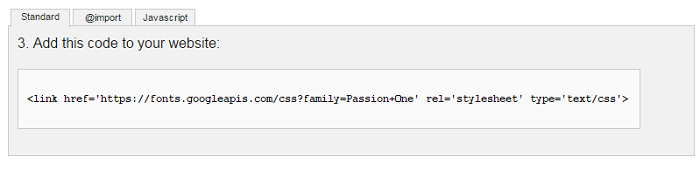
5). Return to the ONTRApage and click the Settings tab. Paste the code from step 3 into the Custom Header Code section. It should look like this:
<link href=’https://fonts.googleapis.com/css?family=Passion+One’ rel=’stylesheet’ type=’text/css’>
6). Switch back to the Google fonts tab, and copy the CSS shown in step 4 to the clipboard.
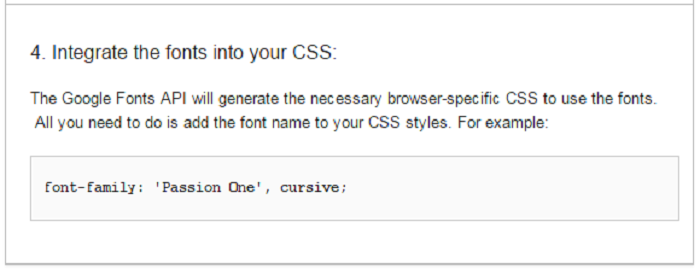
7). Back on your ONTRApages tab, add <style type=”text/css”> below the Standard Version of the code you pasted into the Custom Header Code section. Press ENTER to go to the next line.
8). Choose which type element you want to change. We will use “triple notation” to ensure the font selection is used universally on the page for that element. Here are the type elements used in ONTRApages followed by the “triple notation” CSS declaration we will be using:
Header 1: .h1.h1.h1
Header 2: .h2.h2.h2
Header 3: .h3.h3.h3
Label: .label.label.label
Button: .button.button.button
Quote: .blockquote.blockquote.blockquote
9). For this example, we want our Google font to replace all the Label text, that is used for the form labels. Type the CSS declaration, an opening curly bracket and paste the CSS you copied in step 6 above. Add a closing curly bracket, press ENTER and add the closing </script> tag. It should look something like this:
<style type=”text/css”>
.label.label.label { font-family: ‘Passion One’, cursive; }
</script>
10). The completed Custom Header Code section will look like this example that uses the "h1.h1.h1" header declaration:
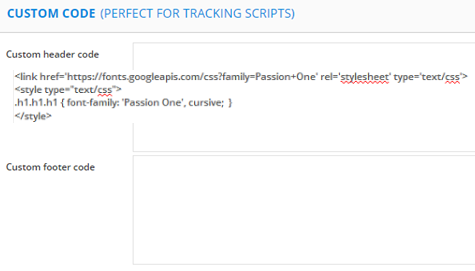
11). Click the Publish button to save and publish the ONTRApage. Because the font substitution is done as the page renders, you will not see the new Google font in the Editor window. Visit the published ONTRApage to see the results.
Importing fonts is unsuccessful due to security concerns now. But, the good news is that Google Fonts will be available inside of ONTRApages v3 (due within 60 days) and later in ONTRAforms.

