Official comment

You can use the ONTRAPORT Tracking Code with Google Tag Manager if you edit the code. This tip is from ONTRAPORT client Sunil Jaiswal, CEO of Flip Minds
The default tracking code looks like this (but must be edited to work in Google Tag Manager):
<script src='https://optassets.ontraport.com/tracking.js'
  type='text/javascript' async='true'
  onload='_mri="999999",
  _mr_domain="XXXXXXX",
  mrtracking();'>
</script>
Note that the 999999 is used to represent your account number and XXXXXXX is your account's subdomain.
Editing this code to make it work in Google Tag Manager is shown below. You will need your account number and subdomain to make it work. Here's how to find that information:
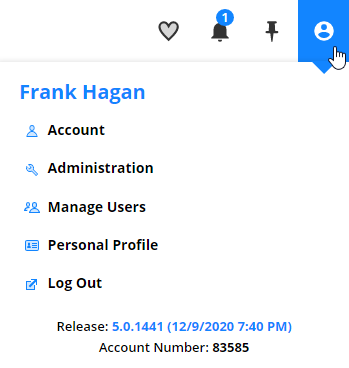
To see your account number, click the profile icon at the top right. It appears at the bottom of the drop down:
To retrieve your account subdomain, click the link for "Account" in the profile menu and navigate to your Account page. You'll see a section for account subdomain. Be sure and copy the entire URL listed for your account subdomain.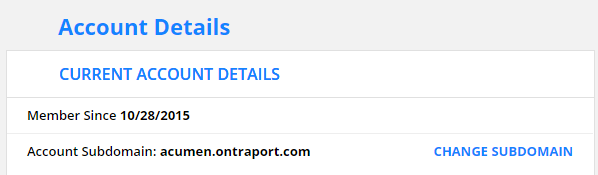
Now you can add this script into Google Tag Manager instead of the default tracking script:
<script>
(function(o,n,t,r,a){
a=o.getElementsByTagName('head')[0];
r=o.createElement('script');r.async=1;
r.onload= function() {_mri=n;_mr_domain=t;mrtracking();};
r.src='https://optassets.ontraport.com/tracking.js'
a.appendChild(r);
})(document,'999999', 'XXXXXXX' );
</script>
Replace the 999999 with your account number, and the XXXXXXX with the complete subdomain shown in your Account page.
When setting up Rules to trigger on the URL visit, ONTRAPORT won't be able to see that Google Tag Manager will insert the tracking code later, and you will get an error message that the tracking can't be found. You'll have to test the modification manually; if the URL visit shows up in the Contact's Contact Log, then the Rule should fire.

