Official comment

Yes, you can use the click to pop code and custom it to include an image. Here are the step-by-step instructions:
- Start with a hosted image; you can upload it to the ONTRAPORT File Manager, or host it elsewhere. Copy the URL of the hosted image to the clipboard.
- Navigate to Forms and Open up your ONTRAform
- Click on the Publish Button and select the "Click-to-Pop" option.
- Copy and paste this code into the "Link Text" area
<img src="image_url.png" /> - Replace what is in between the quotes with your copied URL so it looks like this:
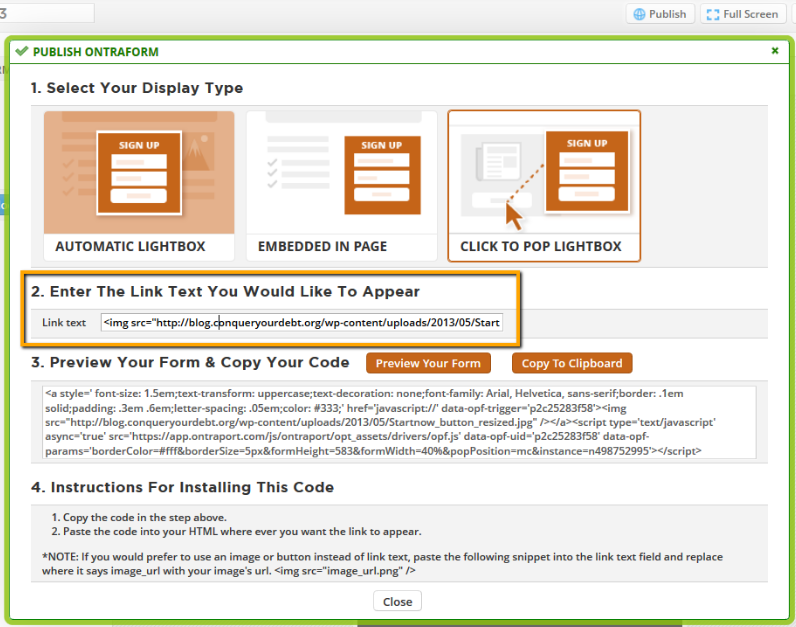
- Copy the form code to your clipboard
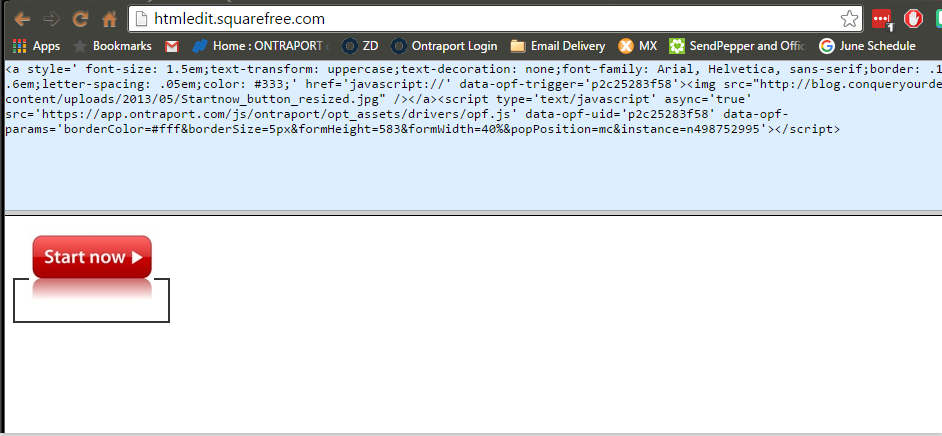
- Navigate to http://htmledit.squarefree.com/ for a real-time editing experience. Or, if you feel comfortable enough with coding, you can paste it into a notepad of your choice.
- Paste in your form code. It should display the hosted image you specified (in this example, it is the red "Start now" button):
- Delete all code starting after
<aand ending beforehrefas this is the designated code for the button border and styling. Here's an example: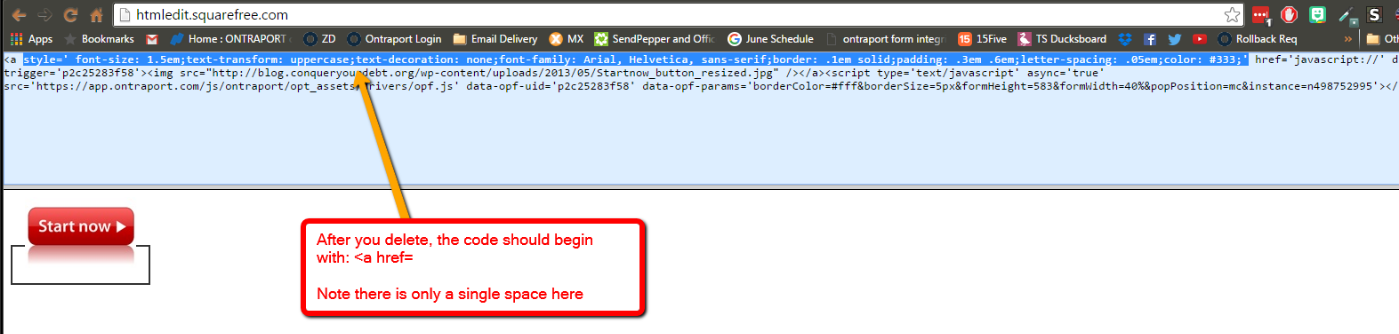
- Your final product should look like this with your image being the button and the old border having been deleted:
<a href='javascript://' data-opf-trigger='p2c25283f58'><img src="http://blog.conqueryourdebt.org/wp-content/uploads/2013/05/Startnow_button_resized.jpg" /></a><script type='text/javascript' async='true' src='https://app.ontraport.com/js/ontraport/opt_assets/drivers/opf.js' data-opf-uid='p2c25283f58' data-opf-params='borderColor=#fff&borderSize=5px&formHeight=583&formWidth=40%&popPosition=mc&instance=n498752995'></script>
Now you should be ready to paste that code to your website.


Comment actions