
Official comment

This is already done, assuming you have properly set up your ONTRAPORT account. Here is how the SMS number is formatted from our SMS Overview article:
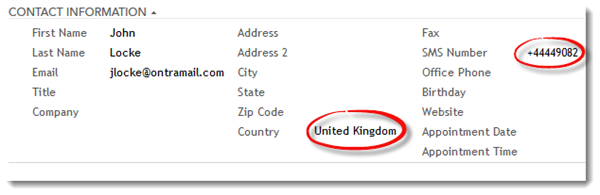
If the SMS number is imported or entered with a properly formatted country code the number is saved in that format. If the number is entered without a country code, ONTRAPORT will format it based on the following criteria:
-
The contact record's Country field, as shown in the image above
-
If there is no Country set in the contact record, the Contact Owner's country setting takes effect. This allows you to automatically format the SMS numbers of contacts assigned to a regional salesperson or business division. See Setting the Contact Owner's Country Field below for more information.
-
If no country is specified in either the contact record or the Contact Owner's information the number will be formatted in the US / Canada format with a +1 country code.
Setting the Contact Owner's Country Field
The Contact Owner is one of the ONTRAPORT Users. To edit the User information, click on the email address at the top right of the screen, then select Manage Users.

Click each User and click Business Country to edit the country field.

Manually entering or importing the SMS number without a country code will trigger the addition of the country code under these rules.
Numbers already formatted with a country code will be added or imported as is, and will not be changed.
Contacts who opt in via SMS, by sending a text message to your ONTRAPORT SMS number, will have the country code associated with their opt-in number.
Contacts who opt in using an ONTRAPORT form will have the country code populated based on the rules above, starting with the IP address they opt in from (if geo-location is available).


